RomM Container Installation & Setup
NORMAL ⏱ 30 min
Last tested on Unraid 7.3.2
TL;DR
RomM is Plex for your ROM library. You can view, download, play, and share with friends, all within the browser over a Docker container. Your saves are stored on your RomM server, not on the device you play on, so you can pick up where you left off on any device. Your friends can even make their own accounts to play your games.
Prerequisites
- Community Applications (CA) installed
- Optional: API keys so RomM can fetch box art, game info and achievements.
Each one takes about 2 minutes. You can also add them later.
- IGDB Client ID + Secret (
IGDB_CLIENT_ID,IGDB_CLIENT_SECRET): game titles, descriptions, covers. Recommended. - ScreenScraper login (
SCREENSCRAPER_USER,SCREENSCRAPER_PASSWORD): extra artwork and game info - SteamGridDB API key (
STEAMGRIDDB_API_KEY): cover art - RetroAchievements API key (
RETROACHIEVEMENTS_API_KEY): achievements
- IGDB Client ID + Secret (
How to get an IGDB Client ID and Secret
IGDB is owned by Twitch, so you sign in with a Twitch account.
- Sign in at dev.twitch.tv/console. Twitch makes you turn on two-factor authentication (phone number) first.
- Click Register Your Application and fill in:
- Name: anything unique, e.g.
romm-plus some random letters. If the name is already taken, it fails without an error message. - OAuth Redirect URLs:
http://localhost - Category: Application Integration
- Client Type: Confidential
- Name: anything unique, e.g.
- Click Create, then Manage next to your new app.
- Copy the Client ID. Click New Secret and copy the Client Secret.
How to get a ScreenScraper login
No API key needed. RomM uses your normal ScreenScraper username and password.
- Go to screenscraper.fr and click Register (the site is French, but there’s an English flag at the top).
- Confirm your email, then sign in once to check the account works.
- Use that username and password in the Docker template.
Tip: use a password you don’t use anywhere else. It’s stored in plain text in the container settings.
How to get a SteamGridDB API key
- Sign in at steamgriddb.com (you can use your Steam account).
- Click your profile picture → Preferences → API.
- Click Generate API Key and copy it.
How to get a RetroAchievements API key
- Create an account / sign in at retroachievements.org.
- Go to Settings → scroll to Applications → copy your Web API Key.
Steps
1. Create a custom Docker network:
This is so these two containers (RomM and the database) can communicate with each other. In your Unraid terminal, run:
docker network create romm
docker network ls
You should see a list of all your Docker networks, as well as the newly created “romm” network.
2. Install MariaDB (database):
Go to your Apps tab (CA) and search for ‘mariadb’, as this will be our database. I chose the one from LinuxServer’s repository.
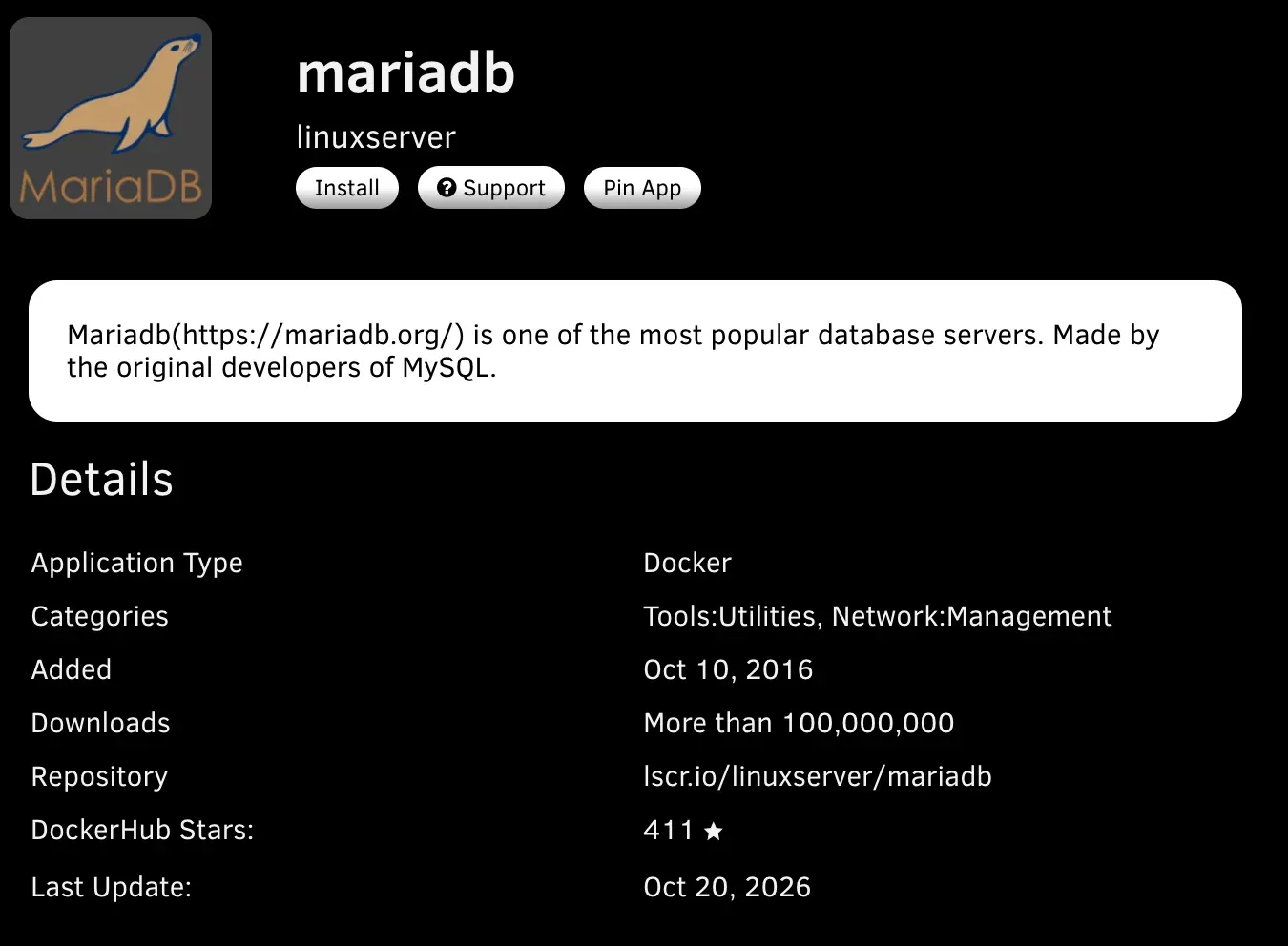
Click on the Install button at the top. Fill in the applicable information below, leaving the rest as default:
- Name:
mariadb-romm◂ change this- Repository:
lscr.io/linuxserver/mariadb- Network Type:
Custom: romm◂ change this- Port WebUI:
3306Container Port:Container Port: 3306 MariaDB listens on this port.- Variable MYSQL_DATABASE: *
rom-db◂ change thisContainer Variable:Specify the name of a database to be created. (valid only for first run)Specify the name of your database. This can be changed to whatever you'd like.- Variable MYSQL_USER: *
[User-defined]◂ change thisChoose your own username. We will refer to this as the DB_USER variable in the next step.- Variable MYSQL_PASSWORD: *
[User-defined]◂ change thisCreate your own strong password with a password generator and save it for later.
* required · ◂ change this one · anything not listed: leave as it is
Click on Apply at the very bottom to pull the container, then wait for it to finish before choosing Done.
3. Install RomM:
Now that we have our database set up and configured, waiting for a connection, we can install RomM. Go back to your Apps (CA) tab and search for RomM. There should only be one to choose, from rommapp’s repository.
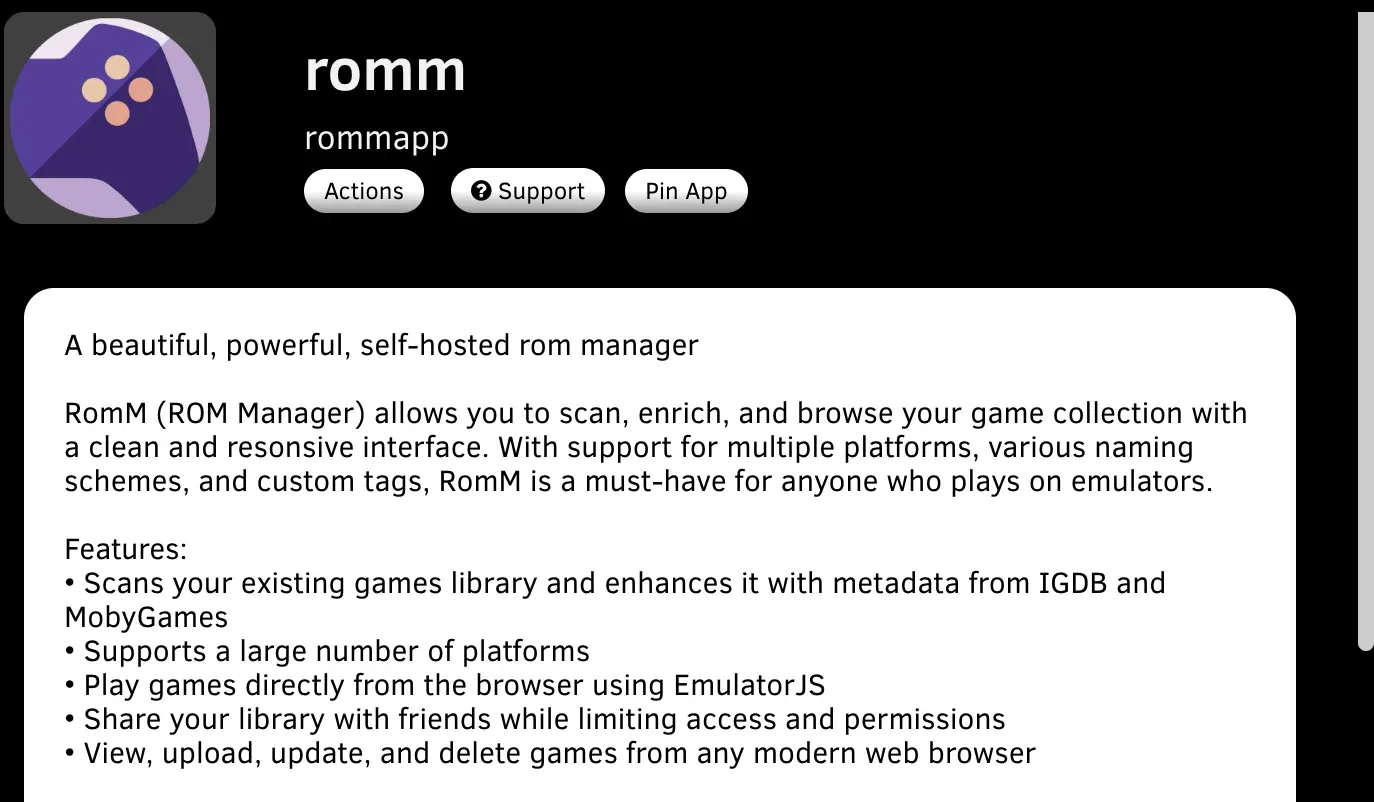
Fill in the applicable information below, including your desired APIs listed in the Prerequisites, and leave the rest as default:
- Name:
romm- Repository:
rommapp/romm:latest- Network Type:
Custom: romm- Port Port:
8070- Path Library: *
/mnt/user/roms/Games◂ change thisContainer Path:Container Path: /romm/library/roms Game filesPoints towards your ROMs directory.- Variable DB_HOST: *
mariadb-romm◂ change thisHost name of database instance- DB_PORT: *
3306◂ change thisPort number of database instance- Variable DB_NAME: *
rom-db◂ change thisShould match MYSQL_DATABASE in MariaDB- Variable DB_USER: *
[mariadb username]◂ change thisDatabase username- Variable DB_PASSWD: *
[user's created password from mariadb]◂ change thisDatabase password- Variable ROMM_AUTH_SECRET_KEY: *
[Generated Key]◂ change thisGenerate a key with `openssl rand -hex 32`- Variable IGDB_CLIENT_ID:
[IGDB client ID](OPTIONAL) Generated above during prerequisites- Variable IGDB_CLIENT_SECRET:
[IGDB client secret](OPTIONAL) Generated above during prerequisites- Variable SCREENSCRAPER_USER:
[username](OPTIONAL) Created above during prerequisites- Variable SCREENSCRAPER_PASSWORD:
[password](OPTIONAL) Created above during prerequisites- Variable STEAMGRIDDB_API_KEY:
[API](OPTIONAL) Generated above during prerequisites- Variable RETROACHIEVEMENTS_API_KEY:
[API](OPTIONAL) Generated above during prerequisites- Variable HASHEOUS_API_ENABLED:
trueAutomatically identify games and pull metadata.- Variable STEAM_API_ENABLED:
trueManually add this variable in
* required · ◂ change this one · anything not listed: leave as it is
Click on Apply at the very bottom to pull the container, then wait for it to finish before choosing Done.
Verify it works
1. Both containers are running
In the Unraid Docker tab, mariadb-romm and romm should both show a green ▶ (started).
2. The database is ready
Click the mariadb icon → Logs. Near the bottom you should see:
[Note] mariadbd: ready for connections.3. RomM connected to the database
Click the romm icon → Logs. There should be no red Access denied or
Can't connect errors.
4. The web page opens
Go to http://YOUR-UNRAID-IP:8070 (or click romm → WebUI).
If you see RomM’s setup page asking you to create an admin account,
both containers are installed and talking to each other.
Setting up RomM and adding your games is covered in the next guide.
Related guides
- RomM setup: adding your games, metadata and users (coming soon)